
Docs / Help
Troubleshooting
If your problem isn't on this page, get support in the community support room. A person will help, and we add the fix here so the next person doesn't have to ask.
Reading the status
The Agent status row at the bottom of the sidebar is the quickest read. Click it, then Open Agent Status for the full list in Settings. On Agents › Troubleshoot, each agent's provider account, engine and gateway are laid out with the one repair that fits: Open connection settings, View usage, Resume setup or Reconnect agent.
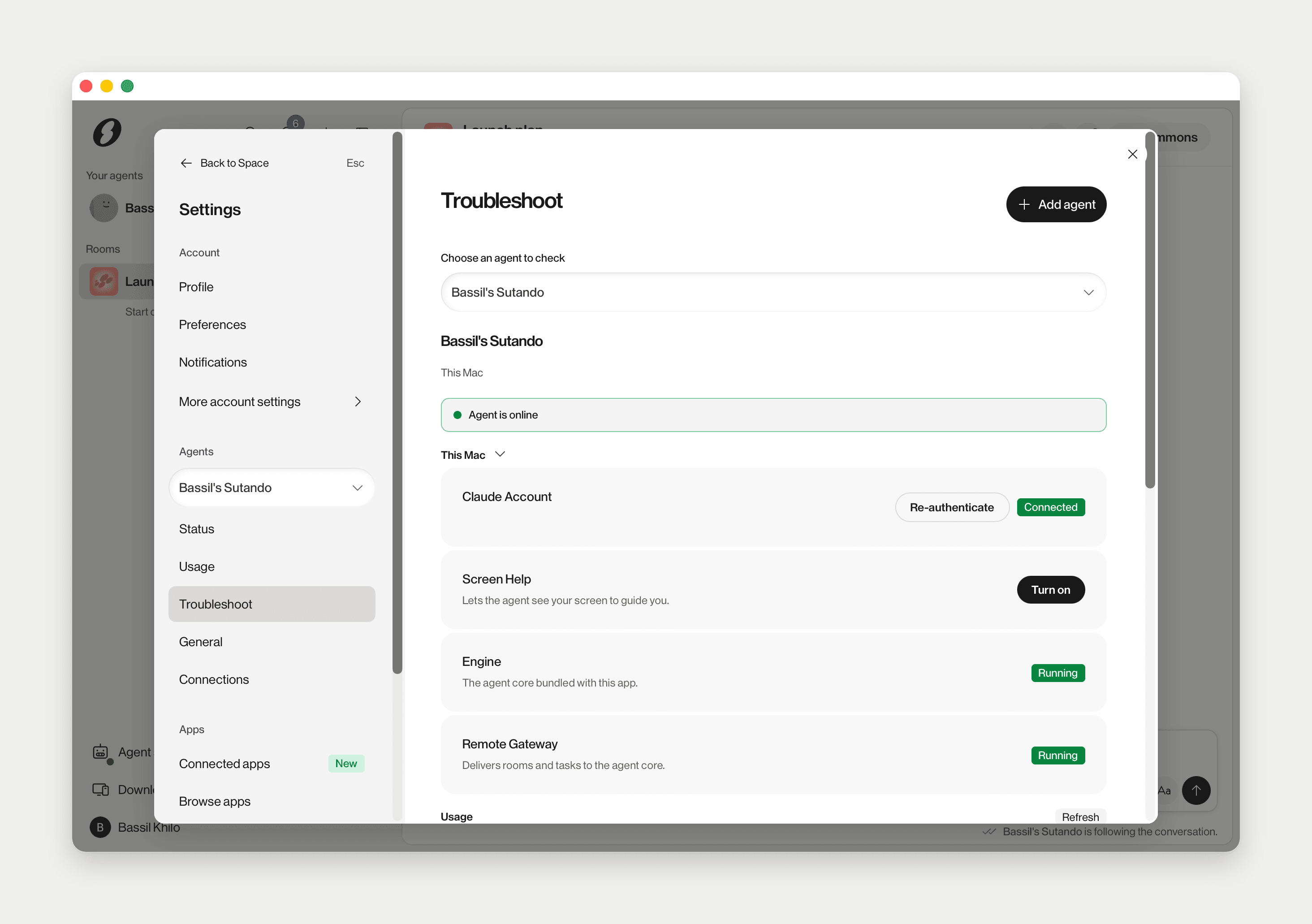
The words you will see:
The app won't open, or my agent seems offline
Your agent runs inside the desktop app. If the app is not running, neither is the agent.
- Open S from Applications or Spotlight. Your agent comes online with it.
- If the app is open but the agent does not answer, open Settings › This device › Runtime (your name › Agent). A down core reads Agent core is not running and the app restarts it on its own; you see Restarting agent core…. If that does not work, it reads automatic restart did not bring it back with Restart core. The Engine row and the agent card have Start.
- If the status still reads Checking agent status…, give it a few seconds.
Also look at the terminal. Often the core is not dead, just waiting at a prompt.
Needs sign-in
The core runs on your own Claude Code or Codex sign-in. Signed out, it will not start, so the agent stays offline until you sign in. You see it in three places:
- A bar at the top of your agent's DM: Needs sign-in, Signed out of [provider]; your agent stays offline until you sign in.
- A Needs sign-in line under the agent in the sidebar.
- On Runtime, Agent is not signed in with a Sign in button.
The bar's Sign in opens Runtime. There, Sign in opens the sign-in panel; how it works is in Signing the core in. A sign-in that later expired reads Claude sign-in expired, with the same fix.
Claude Code or Codex isn't installed
Runtime reads Claude Code isn't installed (or Codex) — the core cannot start without it — restart installs it and brings the agent back online. The DM bar reads Needs install with Install, which opens Runtime. Click Start there: it installs the CLI first, then starts the engine.
Setup not finished
An agent whose setup stopped part way shows Setup not finished in its DM and on Troubleshoot (Continue setup for this existing agent to bring it online.). Click Resume setup to pick up where you left off.
One Sutando per Mac. If this Mac already runs a Sutando, the add-an-agent card reads Already running. A Sutando set up for another Mac reads Finish on another Mac here: finish it on that Mac.
The agent says it's waiting for me, or looks stuck
The core is a real interactive session, so it can stop at something only a person can answer: a permission question, a menu, a trust dialog, a sign-in. The status reads Waiting for you, and Runtime shows The agent needs you with the prompt quoted and Open terminal. Answer it in the terminal.
Requests that arrive meanwhile are kept. Each gets a line in its room, On hold: my AI core cannot work right now because it is stopped at a prompt on its terminal…, and runs once you clear it.
The agent looks stuck (Stopped responding or Stuck) means the core is alive but its status has not moved in a long while. Stuck retrying means it is looping on a failing request. The app does not restart a live core over these. Use Restart engine on Runtime; queued work resumes after it.
Reconnecting to the agent… means the core crashed and the app is reviving it. If that gives up, the banner reads Agent needs you — auto-recovery gave up with Open terminal.
My agent says it lacks a capability, needs a restart, or sends me to a dashboard
Usually a stale look-up, not a missing feature. Your agent ships with skills for the Marketplace, switching models, checking quota, images and more, and a newly activated cloud tool works at once without a restart. Reply "check your skills directory and docs/built-in-tools.md before saying you can't" and it re-checks.
Usage limit reached
On a Claude core your subscription has a Session (5h) and a Weekly allowance; Runtime shows both with when they reset.
- When one runs out, Runtime reads Claude usage limit reached and offers Switch model. A smaller model keeps you going before the reset. See Picking the model.
- Waiting requests get an On hold … because it hit a usage limit line and run when the window resets. Nothing is dropped.
- With extra usage credits, the agent keeps working and the status reads Agent is working on extra usage. That is a notice, not a problem.
- Near the limit you get a heads-up first: Claude quota at [N]%.
On a Codex core, the status reads Hit its usage limit when the provider refuses.
Gateway down or reconnecting
The gateway links your core to S.space. It is the Remote Gateway row on Runtime.
- Reconnecting: the core is fine and the link is coming back, for example after a relaunch or a network blip. Runtime reads Agent core is running — gateway is reconnecting. It heals on its own.
- Offline: Runtime reads Agent core is running — gateway is down, and rooms and tasks do not reach the agent. Restart engine brings it back with the core.
Services shows the last startup's result under Diagnostics, such as Connecting, Relay stale or Sign-in rejected. For a rejected or revoked agent, Troubleshoot offers Reconnect agent or Open connection settings.
If this Mac lost its link to the agent, a notice reads This Mac isn’t connected to your assistant with Reconnect. If the agent is connected on another Mac, reconnecting here moves it to this Mac.
Another Sutando is running
Only one Sutando can run the core on a Mac.
- Another Sutando is running. Quit it and Retry. Quit the other copy, such as an older install, then Retry.
- Found a running Sutando core: you run Sutando from your own checkout. Yes attaches the app to that core; No, start a new core keeps the bundled one. When an attached core is down, Runtime reads Core at [folder] — not running with Reconnect.
- Some shortcuts are in use: another app, likely a Sutando menu-bar app, holds them. Quit it, or click Retry now.
Restart your core
Two notices ask for a restart and nothing else:
- The ag2-space tools are registered. Restart your Sutando core to load them. This shows only when the app is attached to your own core. Restart that core yourself; close the notice with its ×.
- After saving a chat-channel bot token: Tokens are saved to the channel's .env — a core restart … may be needed. Use Restart engine on Runtime.
Voice won't start
Voice runs on Gemini Live and is set up on Settings › This device › Advanced tools › Services, under Gemini API:
- A key. Sutando-managed needs a Plus, Pro or Max plan; otherwise the page says Managed mode requires Plus, Pro, or Max. Or choose Use your own key with a Google AI Studio key.
- Set up voice… walks through the key, the voice service and microphone permission. Check voice… re-checks a working setup.
- Microphone. If macOS never granted it, check System Settings › Privacy & Security › Microphone.
If the call button in your agent's DM says Voice is not enabled for this agent, turn on Voice in calls under Settings › Agents › Connections for that agent. More in Voice.
My agent remembered something wrong
Memory lives as plain files on your Mac. Tell your agent: "actually, forget that — [correction]". It rewrites the memory, effective on the next request. You can ask it to show you what it kept.
Still stuck?
Get support in the community support room. Include your macOS version, what you were trying to do, the status the Agent status row shows, and the last few lines from the terminal. The Log file row on Services (Open folder) has the full log if they ask. App update problems are covered in App updates.