
Docs / Get started
Settings, updates and plan
Settings has no button of its own. Click your name at the bottom of the sidebar and pick a page from the account menu. This page covers the settings that come up most after setup. For where everything else lives, see the tour.
App updates
Updates install in place. You never download the app again.
When a new version is out, a card appears in the sidebar just above your name, with an Update button. It downloads in place, then asks you to restart: Restart to finish. Click Restart. If the download fails, the card offers Retry.
On a screen without the sidebar, such as sign-in, the same update shows as a banner with Relaunch and Later.
A version that must go in before you set up your agent shows a full Update page instead, with Install and then Relaunch.
Restart means a real relaunch. Closing and reopening the window is not enough.
The Marketplace
Skills and cloud tools your agents can use. Every cloud tool shows its price up front.
Click your name, choose Apps, then Browse apps in Settings. The Open Marketplace button under Skills and tools on the Connected apps page lands there too.
You get Search apps, skills, and tools…, the Trending, Just landed and Sutando picks rows, and Your library for what you already have. When you are signed in it shows ● Connected at the top.
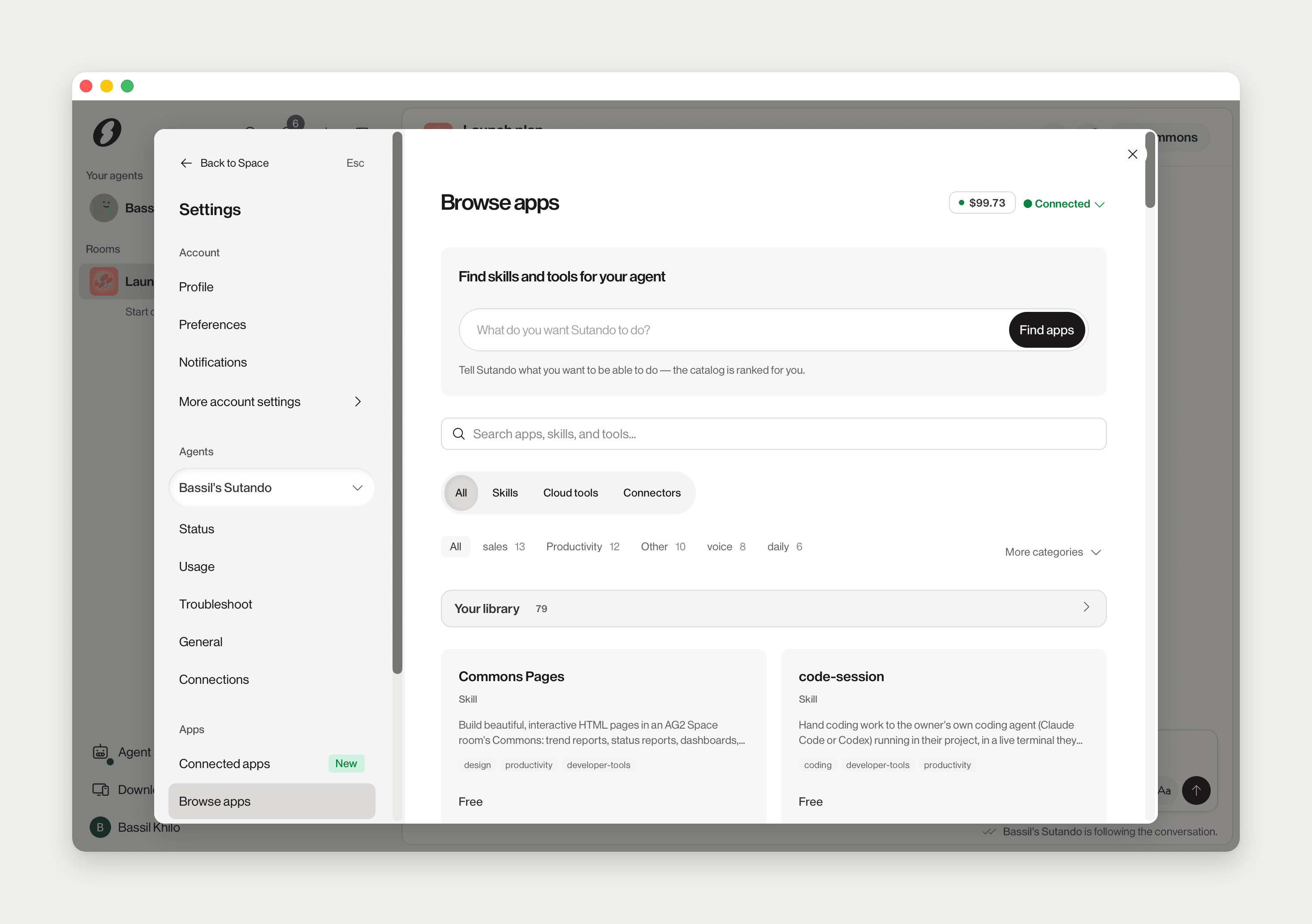
Open a card to see what it does, its price and rating:
- Install (or Install · $[price]) adds a skill to your account: Installed to your account. Your agent will equip it on its next sync.
- Activate turns on a cloud tool: Activated — billed per use from here.
- Connect on a connector opens that app's sign-in.
How skills stay up to date
Cloud tools update themselves. Installed skills refresh when you open the Marketplace.
- Cloud tools run in S.space Cloud. A new version is used on the next call. Nothing to do.
- Skills are files on your Mac, in your agent's skills folder. Each time you open the Marketplace, the app compares Your library with what is on disk and downloads anything missing or out of date. Your agent picks up the new files on its own.
So a skill never changes while your agent is mid-task, and only skills you already installed are touched. A new skill still needs Install.
Bring your Claude Code history along
Your past Claude Code conversations, read once so your Sutando knows your projects, decisions and open threads. Nothing is saved until you approve the digest.
During setup the card appears only when the app finds conversations under ~/.claude/projects (Found [n] conversations across [n] projects), and only when your core is Claude Code. Import › consents; Not now moves on and nothing is read.
What the card says is what happens: Reads ~/.claude/projects — conversation text only, never tool output or files. Read-only on your Mac. The conversations are processed by Anthropic's Claude API, the provider your Sutando already runs on, which does not train on them. Nothing is uploaded to S.space except the people you approve in the digest, which are saved to your People store.
Your Sutando then works in the background and sends you a digest: a paragraph per project with its open threads and decisions, the people it found, and anything it held back. Conversations that look personal are held back and never quoted. Reply to the digest:
- bring it in saves all of it.
- bring in
<project>saves one project; forget<project>drops one. - include personal or include
<date>adds something it held back; hold<date>takes it out again. - Say nothing and nothing is saved.
What lands is a short summary in your Sutando's memory, notes per project in its workspace, and the people you approved. People you already have are updated, never overwritten.
You can do this any time. Ask your Sutando to "import my Claude history", or open Settings › Account › Preferences › Claude Code history, which has Import (later Check for new sessions) and shows progress.
Your plan & spending
Click your name and choose Plan & usage. It opens Overview. The same pages, Overview, Usage and Billing & Invoices, sit under Settings › Account › More account settings. Open web dashboard opens the same dashboard in your browser.
Your account is at sutando.s.space. It is one account for the desktop app and the web, and plans are bought there.