
Docs / Integrations
Connect apps from chat
Your Sutando reaches the apps you already use (Google Calendar, Gmail, Drive, Slack, Linear, Notion, GitHub and a thousand more) through the Superpower Station's connectors. Nothing to set up first: ask for what you want, and if the app isn't connected, your agent asks you to connect it in the chat.
How it works
- Ask your agent, for example "What's on my calendar today?" or "Show me my Linear issues".
- Connect when asked. If the app isn't connected, your agent posts a Connect card. Click Connect; the app's sign-in opens in your browser and the button reads Waiting for sign-in….
- It carries on. When the sign-in lands, the row reads Connected and your agent answers the request you already made. No need to ask again.
The Connect card
The card has one row per app, up to five, and a footer: Requested by ‹your agent› · lets it use your ‹app›. Connect the apps in any order; your agent answers once all are connected. The sign-in link is made when you click, so an old card never holds a usable link.
Some apps need a key instead of a browser login. Their row says Needs an API key or token from ‹app›. Have it ready — the sign-in page asks for it., often with a Where to find it link. Closed the sign-in tab? Click Open sign-in again.
Who can connect
- Only you connect your apps. The button works only for the person the card is for, on a card from their own agent. Others see Waiting for ‹you› to connect.
- Connecting stays private. Ask in a room with other people and the card shows under your message, marked 🔒 Only visible to you. This private card needs the S.space desktop app on the Mac that runs your Sutando; on the web, ask in your DM with your agent.
- Private data goes to your DM. Mail, events and files are sent to your DM, with a one-line note in the room: "I sent it to you in our DM."
- No confirmed account, no data. If your agent can't confirm the account, it shares nothing and the card reads ‹app› · account not confirmed.
See, switch or disconnect apps
Click your name (the account button at the bottom of the room list) and choose Apps. Settings opens on Connected apps.
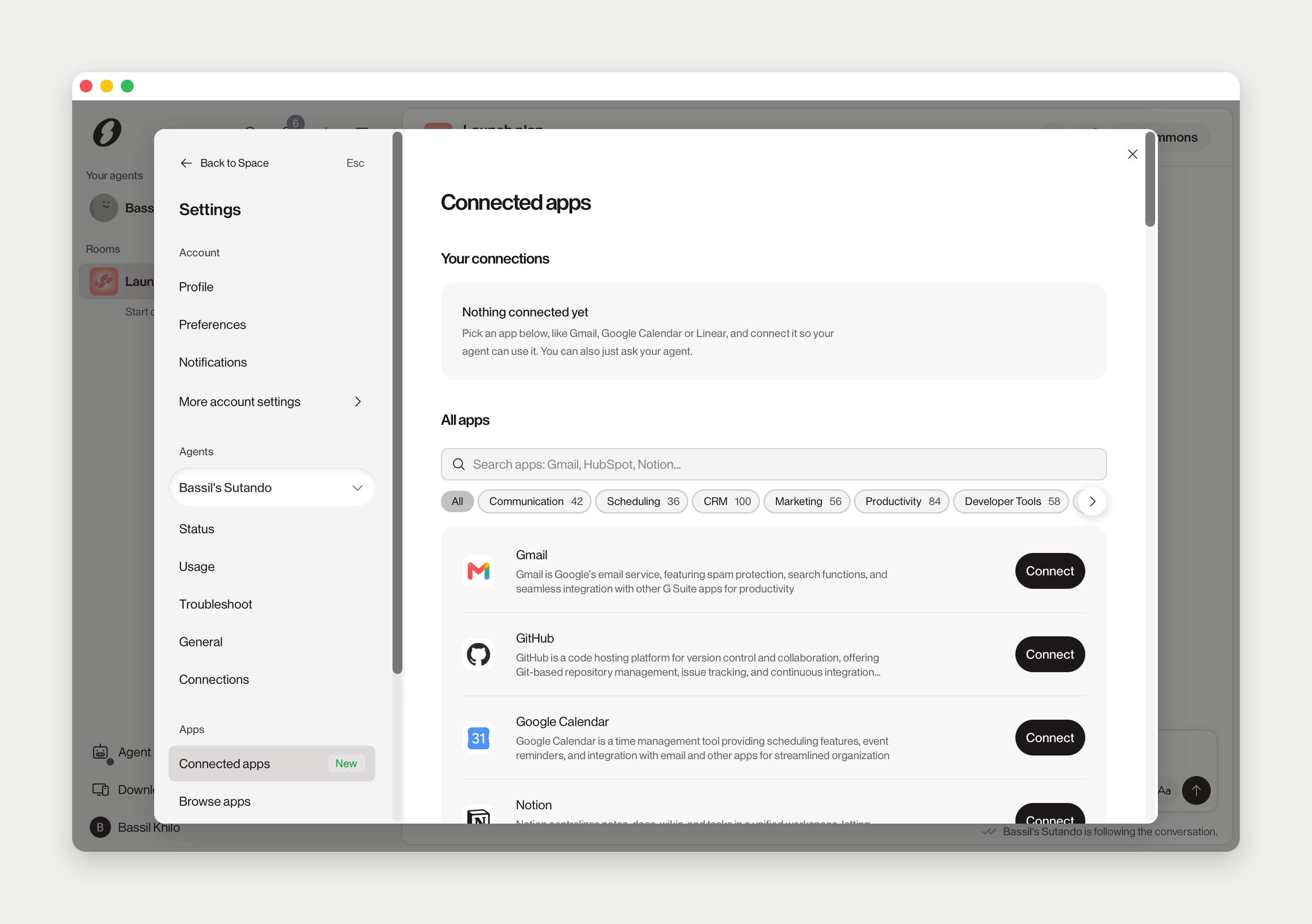
Your connections lists each app as Signed in as ‹account› · Connected ‹date›; Show all N connected expands the list. Each app has Add account, Disconnect (you confirm first) and, when a sign-in expired, Reconnect with a Needs reconnect badge.
Below it, All apps is the full directory: search or pick a category, then click Connect. Use it to connect an app before you need it. Connected apps need s.space Cloud; signed out, the page shows Sign in to s.space Cloud.
Or ask your agent:
- "Switch my Linear account" sends a Switch account card. The old account stays in use until the new sign-in finishes; then the row reads Switched.
- "Which apps am I connected to?" gets you the list in your DM.
- "Disconnect Gmail": your agent never disconnects an app. It points you to this page.
Two accounts of one app
To keep a work and a personal Gmail, click Add account on the app and sign in with the second address. One account is the Default; the other is used only when you name it. Click Use by default to change which, or tell your agent ("use my work Gmail by default"). If a request doesn't make clear which account you mean, your agent asks in your DM.
Signed in with the same account again? Your browser reused the account it was logged into. Sign out of the app in your browser, then try again.
Apps that are not in the list yet
Some sites have no connector today, mostly travel and real estate: Expedia, Booking.com, Trip.com, Airbnb, Zillow and the like.
- Your agent can still browse the site. Ask in plain words. If a site blocks it, it says so.
- Request the app. Search for it under All apps and click Request. The Request ‹app›? dialog asks What would you use it for? (optional); click Send request. The app then shows Requested.