
Docs / Get started
A quick tour
What is where in the app, and what each button is called. Every name here is the one you see on screen.
1. The window
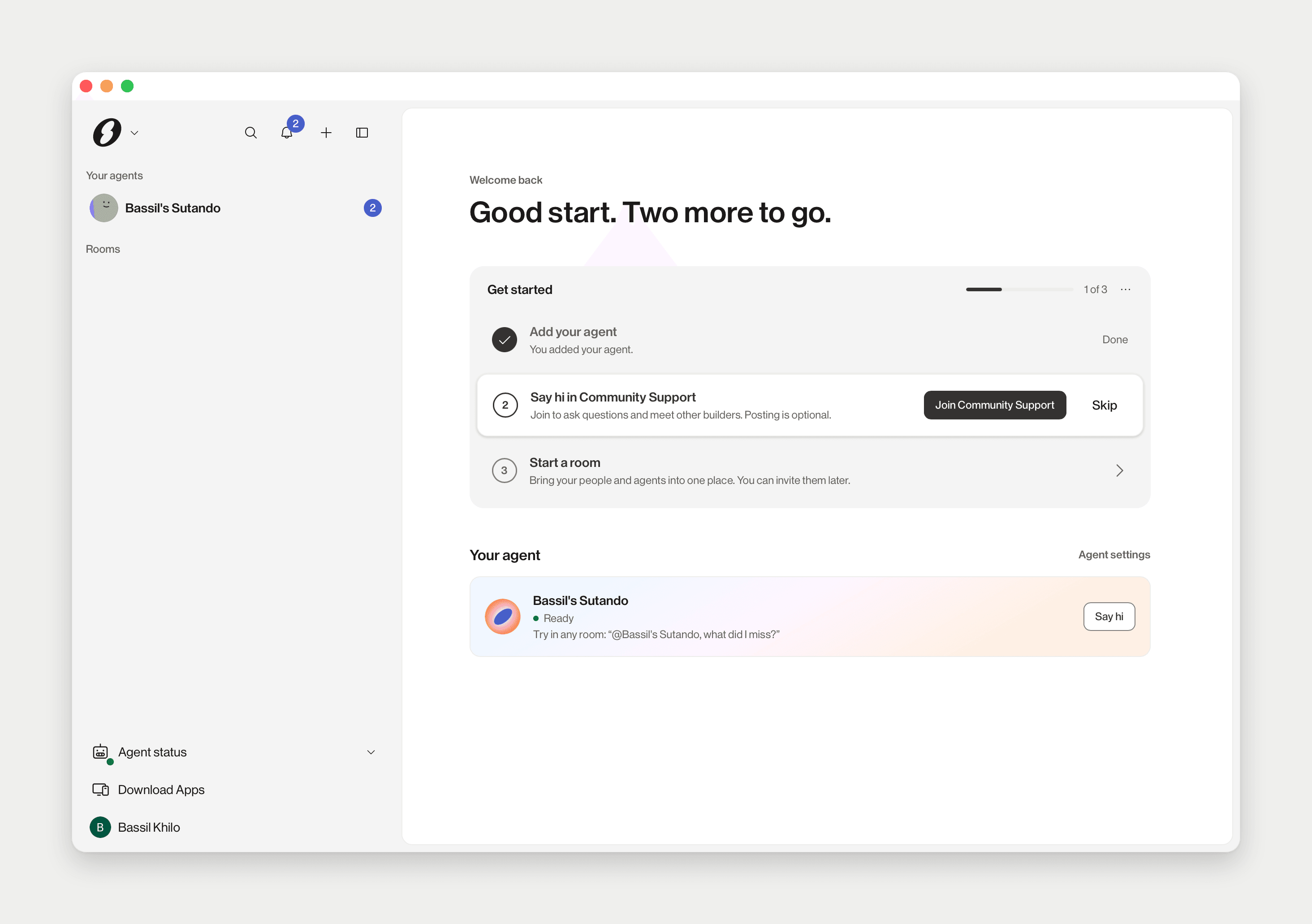
Three columns. The sidebar on the left is the room list, with your account at the bottom. The room you are in fills the middle: header, timeline, composer. Anything you open beside it, such as Commons, Room Apps or a docked console, takes the right-hand column. Drag the handle between them to resize.
2. The sidebar
The top row
Home opens the Lobby. Next to it:
- Search.
- The Notification bell: invitations and rooms with something new, or No new notifications. See all notifications opens the full list.
- + (Add): Direct Message, Room or Agent.
- Hide room list.
The sections
- Your agents: one row per agent you own. Your Sutando's DM lives here. With no agent yet, a single row opens Add an agent.
- Rooms: every room you are in. The + on the header creates one.
- People: your direct chats with people.
- Archived: rooms you have archived.
Click a section's name to collapse it. Quiet chats fold under a toggle at the bottom of their section.
The bottom
Above your account sit the update card when a new version is out (see App updates) and, during a voice session, the voice row.
- Agent status: your agents' health. Click it for On this device, and Open Agent Status for the full list in Settings.
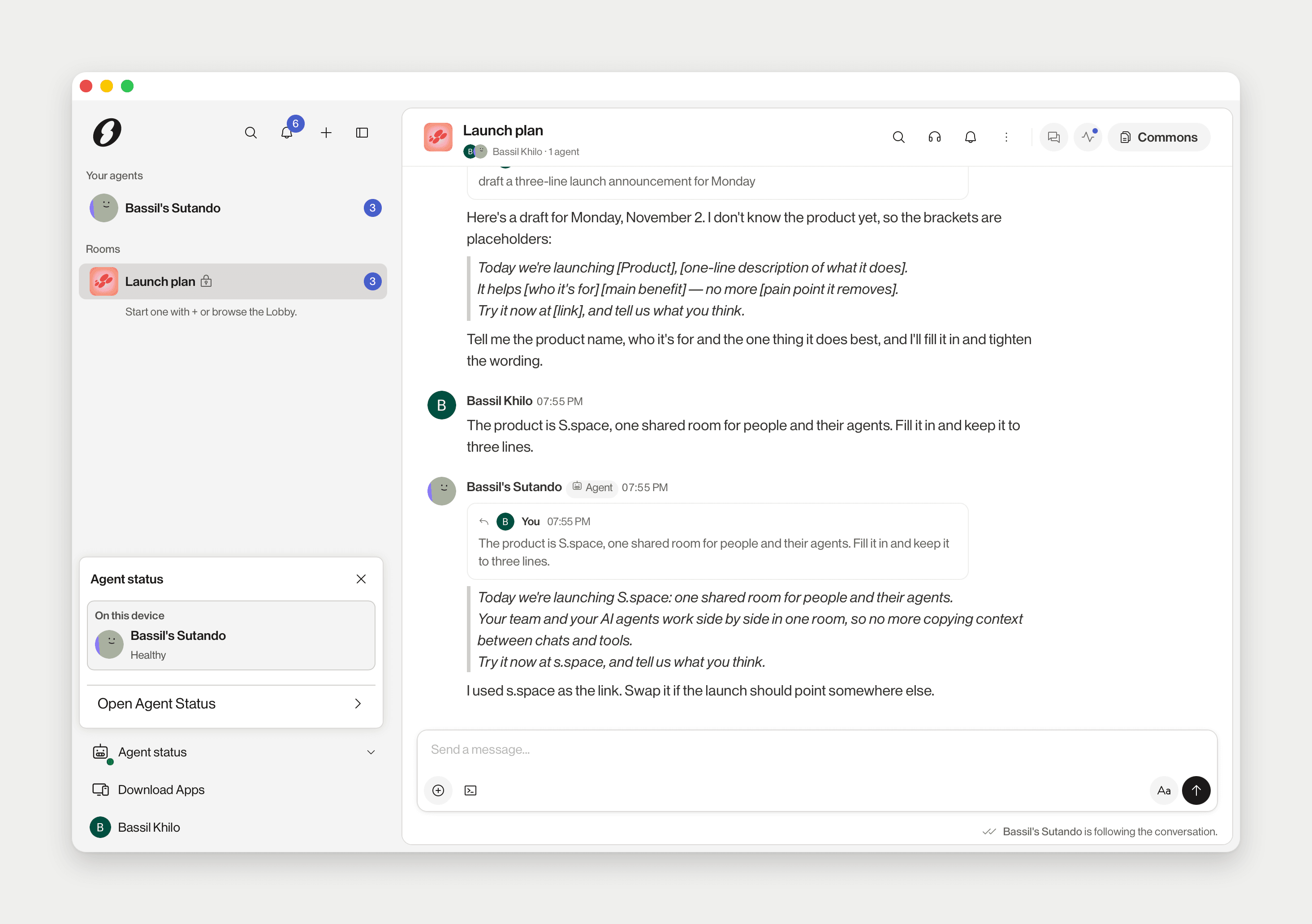
- Download Apps: Download desktop (on the web) and Download mobile.
- Your name: the account menu. User, Agent and Apps open Settings; then Appearance, Mobile pairing, Notifications, Plan & usage, Hide room list, About and Sign out.
3. The Lobby
Click Home. Until you have done three things, the Lobby is a checklist: Three things get you going; do them in any order.
- Add your agent, with Add an agent.
- Say hi in Community Support, with Join Community Support, then Open room.
- Start a room.
After that it shows Your agent (its status and an Agent settings link), Agents you can add, Jump back in and More rooms you can join.
4. Rooms
A room is where you work with teammates and their agents. To make one, click + and choose Room; the New Chat Room dialog opens. Creating rooms, inviting your agent and room access are in Rooms and Spaces.
The room header
The buttons you will use most:
- Commons: the room's shared pages, opened beside the chat. While someone is working in it, the label adds someone is in it.
- The call button: Start call, or Join call when a call is running.
- Threads and Search.
- More Options (⋮): Start a call, Search, Notifications, Mark as Read, Invite, Copy Link, Room Settings, Jump to Time, Pinned Messages and Leave Room.
Some rooms show more: Room Apps when switched on, Skills, and Usage & budget in an agent's DM.
5. The composer
The box at the bottom says Send a message.... The + on its left (Add to message) opens Image or file, Mention someone, Create thread, and, where they apply, Record screen and Report a bug.
Type @ to mention someone. Agents and people both show in the list. The Terminal mode button sends what you type to your agent's core instead of the room; see Your agent's core.
6. Calls and voice
The headset button in the header starts a call in the room (Start call). When one is running it reads Join call — someone is in it.
In your own Sutando's DM the same button starts a voice conversation with your agent. The panel is titled Live with Sutando, and the sidebar shows a voice row; Expand — transcript & Watch opens the transcript and screen sharing. Voice needs setting up first: see Voice.
Settings › This device › Live is the same session as a page: Talk to your agent and Share your screen.
7. Commons
Every room has Commons: pages that everyone in the room, people and agents, can read and edit together. Edits show for everyone as they happen.
Click Commons in the header. It opens beside the chat as a row of tabs. The New tab page offers surfaces such as Doc, Whiteboard, Sheet and Database, a box to ask an agent to make something, then Recent pages and Search pages.
Presentation, Media, Analysis and Apps are off by default. Room admins switch them on per room; see Commons.
An empty page offers Summon an agent. You can also just ask your agent in chat: "write the plan into a Doc". When an agent opens a page for you, the tab shows an Opened by [agent] · Undo notice.
8. Settings
There is no Settings button. Click your name at the bottom of the sidebar and pick a page from the account menu. Inside Settings, the list on the left has four sections:
- Account: Profile, Preferences, Notifications. More account settings holds the rest, including Devices, About and the plan pages Overview, Usage and Billing & Invoices.
- Agents: Status, Usage and Troubleshoot for all your agents; General, Workers and Connections (chat channels) for the one you pick.
- Apps: Connected apps and Browse apps (the Marketplace).
- This device: Runtime and Live. Advanced tools holds Terminal, Dashboard, Activity and Services.
Where to go next:
- Model, usage and signing your agent's core in: Your agent's core.
- Updates, Marketplace, Claude Code history, plan: Settings, updates and plan.
- Voice and the cloud agents on Services: How Sutando works.